 Tel:
Tel:  Email:
  WhatsApp:
 Description
Product Deep Introduction
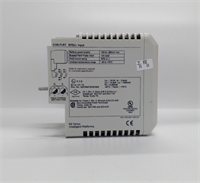
The GE IC695PSA040F is a core power supply unit within the PACSystems RX3i automation control system. It is primarily responsible for converting unstable field mains or DC power into the stable 24VDC, 5.1VDC, and 3.3VDC voltages required by the rack’s CPU, I/O modules, and backplane bus. Frankly speaking, in industrial environments, the power supply module is often the most overlooked “weak link” that can cause a complete system shutdown. The greatest advantage of this module is its wide voltage adaptability.It has a rated power of 40 watts and can accept an input of 85 to 264VAC or 100 to 300VDC. This means whether you are connecting it to standard 220V mains or using a 110V DC supply in specific industrial scenarios, it automatically adapts without the need for manual jumper switching. For maintenance engineers, this “foolproof” compatibility greatly reduces the difficulty of spare parts management. However, it’s important to note that this power supply occupies 2 standard slots on the RX3i universal backplane, so be sure not to miscalculate the space when planning your rack layout.
Key Technical Specifications
- Brand: GE (General Electric / GE Fanuc)
- Model: IC695PSA040F
- Applicable Series: PACSystems RX3i
- Output Power: 40 Watts
- Output Voltage: 24 VDC (Relay supply), 5.1 VDC, 3.3 VDC (Internal module supply)
- Input Voltage Range: 85 to 264 VAC or 100 to 300 VDC
- Output Current: Max 1.6A / 6A / 9A (Corresponding to different voltage levels)
- Slot Occupancy: 2 standard slots
- Diagnostic Functions: Equipped with 4 LED indicators: Power (PWR), Fault (FAIL), Overheat (OH), Overload (OL)
- Certification Standards: Compliant with UL, CSA, and other industrial safety certifications
Installation & Wiring Guide
Phase 1: Preparation (Estimated Time: 10 minutes)
- Safety Confirmation: Completely cut off the main input power to the RX3i rack and hang a “Do Not Operate / Do Not Close” warning sign on the cabinet door.
- Tool List: Prepare an anti-static wrist strap, flathead/Phillips screwdrivers, and a multimeter.
- Program Backup: Use the Proficy Machine Edition software to back up the project files and hardware configuration from the CPU to your local computer.
Phase 2: Removing the Old Module (Estimated Time: 15 minutes)
- Power-off Verification: Use a multimeter to measure the input and output terminals of the power module to ensure the voltage has dropped to zero, preventing residual electricity injuries.
- Photo Documentation: This step is extremely important! Take out your phone and take multi-angle photos of the power module’s wiring terminals (especially the L/N/PE or +/-/PE wiring sequence).
- Removal: Loosen the mounting screws at the top and bottom of the module, grasp the module handle, and pull it out smoothly. If the module is stuck on the rail, you can gently wiggle it left and right before removing it. Do not violently strike the backplane.
Phase 3: Installing the New Module (Estimated Time: 15 minutes)
- ESD Protection: Wear an anti-static wrist strap and take the brand new IC695PSA040F out of its anti-static packaging.
- Visual Inspection: Check the module surface for obvious scratches or dents, ensure the model label is clear and unworn, and sniff to see if there is any abnormal burnt smell.
- Installation: Align the new module with the rack rail, push it in smoothly until it fits completely with the backplane connector, and tighten the top and bottom mounting screws.
- Restore Wiring: Strictly follow your previous photos to connect the power lines to the terminal block, and tighten them with a screwdriver to ensure there are no loose connections. It is recommended to use 14# to 22# AWG wires.
Phase 4: Power-on Testing (Estimated Time: 30 minutes)
- Pre-power Check: Visually inspect the wiring again to ensure it is correct, confirm there are no short circuits in the input lines, and the ground wire is reliably connected.
- Power On: Close the switch to supply power, and observe whether the “Power (PWR)” green indicator on the module panel is constantly lit.
- System Diagnosis: Open the programming software to view the rack diagnostic screen, and confirm that the power supply status shows “OK” rather than “Failed”. If the “Fault (FAIL)” red light turns on, it indicates an internal abnormality in the power supply.
- Load Test: Let the system run continuously for 15 minutes, and observe whether the “Overload (OL)” and “Overheat (OH)” indicator lights are off. If the amber light turns on, it means the output load is too heavy or the heat dissipation environment is too poor.