 Tel:
Tel:  Email:
  WhatsApp:
 Description
Key Technical Specifications
| Parameter | Specification |
|---|---|
| Manufacturer | ENI (Electronics for Imaging) |
| Model | GHW-12Z |
| Type | Serial Server / Device Server |
| Ports | 12 x RS-232 (DB9 Female) |
| Network | 1 x 10/100 Base-T Ethernet |
| Protocols | TCP/IP, UDP, DHCP, DNS, HTTP |
| Dimensions | 445 mm (H) x 340 mm (W) x 44 mm (D) |
| Mounting | Wall-mount or rack-mount (1U) |
| Power Supply | 12VDC (external power brick) |
| Operating Temperature | -20°C to 60°C |
Product Introduction
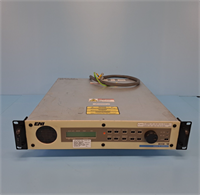
The ENI GHW-12Z is a high-density serial server designed to connect legacy RS-232 devices to modern Ethernet networks. It acts as a bridge, allowing up to 12 industrial instruments, sensors, or terminals to communicate over TCP/IP protocols.Unlike single-port converters, the GHW-12Z consolidates 12 serial connections into a single network interface, significantly reducing cabling complexity in factory floors and control rooms. It is physically distinct from the GHW-8Z (8-port) and GHW-24Z (24-port) models, offering a balanced solution for medium-sized installations.
Installation & Configuration Guide
Preparation (10 min)
- Verify Power: Ensure you have the included 12VDC power brick and that the power outlet is nearby.
- Network Setup: Connect a computer directly to the GHW-12Z’s Ethernet port to configure the IP address before placing it in the rack.
- Device Check: Confirm the RS-232 devices you intend to connect are set to the correct baud rate and flow control (handshaking).
Removal (5–10 min)
- Power Down: Disconnect the 12VDC power supply to the GHW-12Z.
- Cable Pull: Carefully unplug all 12 DB9 serial cables from the rear terminals. Label them if necessary to maintain the correct mapping.
- Unmount: Unscrew the mounting brackets securing the device to the wall or rack.
Installation (10 min)
- Mounting: Secure the GHW-12Z to a vertical surface or 19-inch rack using the provided hardware. The unit is 1U high and rack-mountable.
- Cabling: Connect the 12 RS-232 devices to the corresponding ports on the rear panel. Ensure the DB9 connectors are tightened.
- Network: Connect the Ethernet cable to your local switch or router.
Power-On & Test (10 min)
- Power Up: Apply 12VDC power. The status LEDs on the front panel will illuminate.
- Access: Open a web browser and enter the default IP address (usually 192.168.1.100) to access the configuration utility.
- Verification: Ping the GHW-12Z from your network. Verify that data transmitted from the RS-232 devices appears on the network and vice versa.
Troubleshooting Quick Reference
| Symptom | Probable Cause | Action |
|---|---|---|
| No Power | Faulty power brick | Check the 12VDC input with a multimeter. Ensure the power connector is fully seated. |
| No Network Connection | IP conflict or cable fault | Try setting the computer to a static IP (192.168.1.x) and access the web interface. Check Ethernet cabling. |
| Intermittent Data | Electrical noise | Ensure all RS-232 cables are shielded and grounded properly. Avoid running cables parallel to high-voltage lines. |
| Port Not Responding | Loose terminal or device error | Inspect the DB9 connector for corrosion or looseness. Reset the connected RS-232 device. |
Dimensions, Mounting & Wiring Notes
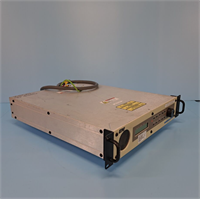
- Dimensions: The unit is relatively thin at 44 mm deep, making it suitable for tight control cabinets.
- Mounting: It can be mounted on a wall using the provided brackets or installed in a standard 19-inch equipment rack (1U height).
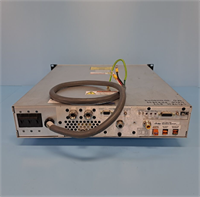
- Wiring: The rear panel features 12 DB9 female connectors for RS-232 and a standard RJ45 Ethernet port. Power is supplied via a DC barrel jack.
FAQ
What is the maximum cable length for the RS-232 ports?
The maximum cable length for RS-232 is typically 15 meters (50 feet) per connection. For longer distances, you will need to use RS-422/485 converters or fiber optic media converters.Can I use this for Modbus RTU?
Yes. The GHW-12Z supports transparent serial tunneling, which allows Modbus RTU traffic to pass through the Ethernet network to a Modbus TCP server (such as a PLC or SCADA system).How do I change the IP address?
You must access the web-based configuration utility. Connect a computer directly to the GHW-12Z (or configure DHCP) and open the IP address in a browser. From there, you can set a static IP for your network.Is this device hot-swappable?
The device itself does not support hot-swapping of the power supply, but the individual RS-232 ports are designed to handle hot-plugging of serial devices. However, it is recommended to power down the unit when making major configuration changes.What operating systems are supported?
The GHW-12Z is protocol-based and does not require drivers. As long as your host computer or PLC supports TCP/IP and serial communication, it will work with Windows, Linux, macOS, or any other OS.