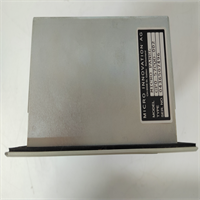
 Tel:
Tel:  Email:
  WhatsApp:
 Description
Key Technical Specifications
| Parameter | Specification |
|---|---|
| Manufacturer | OMACO |
| Display Size | 5.7 inch (145 mm) |
| Display Type | STN Color |
| Resolution | 320 x 240 (¼-VGA) |
| Power Supply | 24V DC |
| Memory Capacity | 2GB |
| Interface | Serial Port (for download/communication) |
| Software | GALILEO Design Software |
| Dimensions | 110mm x 90mm x 60mm |
| Weight | 0.26 kg |
Product Introduction
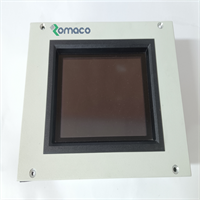
The OMACO GF0-57CQD-002 is a 5.7-inch color touchscreen operator panel designed for visualizing and controlling medium-to-high complexity automation systems. Part of the GF Series “Micro Panel” line, it provides a compact yet powerful interface for machine operators to monitor status and input commands.This unit features a Color STN display with a resolution of 320×240, offering clear visibility of process data. It is equipped with 2GB of internal memory to store project data and logs. The panel requires configuration via a PC using the GALILEO design software, with data transferred via a serial interface. It operates on a standard 24V DC power supply, making it compatible with most industrial control cabinets.
Installation & Configuration Guide
Preparation (10 min)
- Power Down: Ensure the 24V DC power supply to the panel is turned off.
- Panel Cutout: Verify the mounting surface has a cutout compatible with the GF0 series dimensions (approx. 11x9cm faceplate).
- Software Setup: Install the GALILEO design software on your PC to create or modify the project data.
Removal (5–10 min)
- Disconnect Power: Unplug the 24V DC power connector from the rear terminals.
- Disconnect Comms: If connected to a PLC or PC, unplug the serial communication cable.
- Unclip: Release the mounting clips (usually located on the sides or top/bottom of the rear housing) and slide the unit out of the panel cutout.
Installation (10 min)
- Mounting: Insert the GF0-57CQD-002 into the cutout from the front.
- Secure: Engage the mounting clips from the rear and tighten them evenly to ensure a flush fit. Do not overtighten, as the plastic housing may crack.
- Wiring: Connect the 24V DC power supply to the designated terminals. Ensure polarity is correct (+/-).
- Communication: Connect the serial cable to the communication port for data exchange with the PLC or for downloading projects.
Power-On & Test (10 min)
- Project Load: Ensure the necessary project data has been downloaded to the panel via the serial port using the GALILEO software. The panel will not function as a visualization unit without this data.
- Power Up: Apply 24V DC power.
- Touch Test: Verify the touchscreen responsiveness by navigating through the loaded project screens.
- LED Check: Confirm the backlight is active and the display colors are correct.
Troubleshooting Quick Reference
| Symptom | Probable Cause | Corrective Action |
|---|---|---|
| Blank Screen | No power or backlight failure | Check 24V DC input voltage. Verify power connections are tight. |
| “No Project” Error | Memory empty or corrupt | Connect to PC and re-download the project using GALILEO software. |
| Touch Inaccurate | Calibration drift | Recalibrate the touchscreen via the system settings or GALILEO software. |
| Comm Error | Serial cable fault | Check serial cable continuity. Verify baud rate settings match the PLC/PC. |
Dimensions, Mounting & Wiring Notes
- Form Factor: Compact “Micro Panel” box style.
- Dimensions: 110mm (W) x 90mm (H) x 60mm (D).
- Mounting: Panel mount (requires cutout).
- Wiring Notes:
- Power: 24V DC (Check polarity carefully; reverse polarity can damage the unit).
- Comms: Serial interface (RS232/RS485 depending on configuration).
- Environment: Operate within 0°C to 60°C. Avoid condensation (95% non-condensing humidity max).
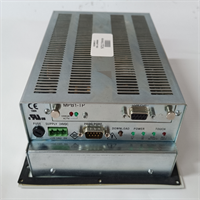
GF0-57CQD-002 OMACO
FAQ
What software do I need to program the GF0-57CQD-002?
You must use the GALILEO design software specific to the GF series. This software allows you to create the visualization screens and logic, which are then downloaded to the panel.Can I use this panel without a PC connected?
Yes. Once the project data is downloaded and stored in the panel’s 2GB memory, it operates independently. The PC is only required for programming and updates.Is the display monochrome or color?
The GF0-57CQD-002 features a Color STN display. (Note: Monochrome versions exist in the GF series, such as the GF0-57SQD, so verify the model number carefully).What is the resolution of the screen?
The resolution is 320 x 240 pixels (¼-VGA).Does it support Ethernet?
Standard configurations for this model typically utilize a Serial Interface for communication. Check the rear ports; if an Ethernet port is not physically present, it likely relies on serial communication or an optional communication card slot.