
 Tel:
Tel:  Email:
  WhatsApp:
 Description
Key Technical Specifications
| Parameter | Specification |
|---|---|
| Part Number | 3500/93-01-00-00 |
| Display Type | VGA Color Active Matrix LCD |
| Interface | Touchscreen (User-configurable) |
| Power Dissipation | 15.5 W (Max with Display Interface Module) |
| Mounting Options | Front-of-Rack (Hinged), 19″ EIA Rack, Panel Mount |
| Operating Temp | -30°C to +65°C (-22°F to +150°F) |
| Storage Temp | -40°C to +85°C (-40°F to +185°F) |
| Humidity | 5% to 95% (Non-condensing) |
| Compliance | API 670 Standard (Mechanical Protection) |
| Connectivity | High-speed internal network to 3500 Backplane |
Product Introduction
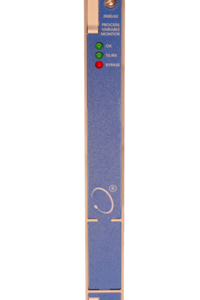
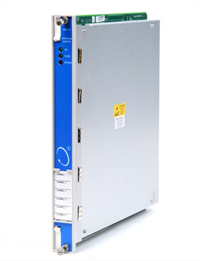
Let’s be honest: staring at a rack of blinking LEDs is useless when a turbine is tripping. You need numbers, trends, and immediate context. The Bently 3500/93-01-00-00 is the face of your protection system. It’s not just a screen; it’s the bridge between the raw vibration data coming off the shaft probes and your ability to make a decision before a bearing seizes.I’ve deployed these in refineries where the ambient heat alone would kill a standard monitor, and they hold up. Why? Because they are designed to meet API 670 standards, which isn’t just a marketing sticker—it means it survives the harsh electrical noise and temperature swings of heavy industry. It pulls data directly from the backplane (channel values, relay status, alarm events) without needing an external PC running System 1 software. If your control room connection dies, this screen is your only window into the machine’s health.
Quality SOP & Tech Pitfalls (The Reality Check)
The Lab Report (SOP)
We don’t just ship boxes. Here is how we validate this unit before it leaves our bench:
- Visual Inspection: We check the bezel for cracks and the VGA screen for “dead pixels” or pressure marks. The connector pins on the rear must be straight—bent pins here mean no communication with the rack.
- Live Power Test: We hook it up to a live 3500 rack simulator. We verify that the “OK” LED illuminates and that the backlight intensity is uniform (no dark corners).
- Touch Calibration Check: We run the cursor across the four corners of the screen to ensure the resistive touch layer registers input accurately.
- Configuration Load: We verify the firmware responds to the 3500 Rack Configuration Software. If it doesn’t handshake, it goes back to the refurb team.
The Engineer’s Warning (Pitfalls)
Don’t ignore the cabling distance.
I saw a project stall for three days because the integrator tried to mount this display 200 feet away using standard VGA cables without signal boosters. The result? A fuzzy, rolling image that made the text unreadable. Stick to the 100-foot limit for standard connections unless you are using specific external power configurations. Also, watch out for the hinge mechanism if you rack-mount it; forcing it open without unlocking the latches snaps the plastic retainers instantly.
Installation & Configuration Guide
This isn’t plug-and-play like your home TV. Follow the sequence to avoid frying the backplane.
- Pre-Installation Safety
- ️ CRITICAL: Ensure the 3500 rack power is OFF or the specific slot is depopulated before inserting connectors.
- Discharge static electricity. This is a sensitive electronic assembly, not a piece of steel.
- Physical Mounting
- Rack Mount: Use the dedicated hinge kit. This allows you to swing the screen open to access the module slots behind it. Do not block the ventilation slots.
- Remote Mount: If panel mounting, ensure the cutout matches the dimensions exactly. You need a clean, flat surface to prevent stress on the chassis.
- Cabling & Connection
- Connect the high-speed internal network cable to the 3500 backplane. This carries the data.
- Connect the power supply if using external power (for long-distance runs).
- Tip: Secure the cables with zip ties away from the hinge path. Pinched cables are the #1 cause of intermittent display failure.
- Configuration & Power-Up
- Power up the rack. Wait for the “OK” LED to turn solid green.
- Launch the 3500 Rack Configuration Software on your laptop.
- Map the display to the rack. You can customize what shows up on the screen (e.g., hide complex channels, show only critical alarms).
Compatible Replacement Models
| Compatibility | Model Number | Notes |
|---|---|---|
| Drop-in | 3500/93-01-00-00 | Exact match. Same form factor, same firmware support. |
| ️ Variant | 3500/93-01-00-00-00 | Functional equivalent. The suffix usually denotes minor revision changes or packaging. Verify connector type. |
| Incompatible | 3500/92 | This is a Communications Gateway (Modbus/TCP). It looks similar but serves a completely different function (data export vs. local display). |
Frequently Asked Questions (FAQ)
Q: Can I hot-swap this while the rack is running?
A: Generally, yes, the 3500 system supports hot-swapping, but I wouldn’t risk it on a critical asset unless I had to. Pulling the display shouldn’t trip the machine (since the logic is in the monitors, not the display), but you lose visibility. Proceed with caution.Q: My screen is flickering. Is it dead?
A: Not necessarily. Check the power supply first. If the voltage drops below the threshold, the backlight will strobe. If power is stable, it might be the inverter board inside the display unit.Q: Does this come with the mounting hardware?
A: If you buy “New Surplus” or “Factory Sealed,” it usually includes the manual and basic brackets. If you buy “Used/Removed,” assume you are getting the brick only. Ask your vendor.Q: Can I use a standard PC monitor instead?
A: No. A standard monitor won’t talk the proprietary 3500 internal protocol. You need the specific interface module built into the 3500/93 to translate the rack data into video signals.Q: What is the warranty on these?
A: Standard industry practice is 12 months. Since these contain LCDs and touch digitizers, inspect them immediately upon arrival. Shipping damage is common with screens.