 Tel:
Tel:  Email:
  WhatsApp:
 Description
Key Technical Specifications
| Parameter | Specification |
|---|---|
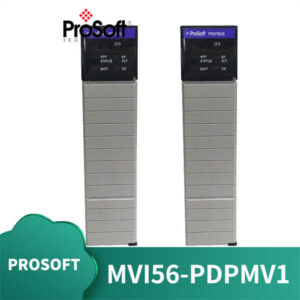
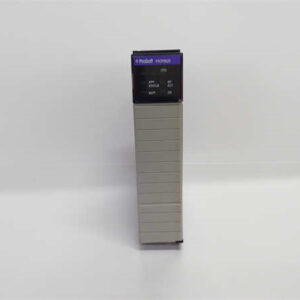
| Product Model | MVI56E-SIE |
| Manufacturer | ProSoft Technology |
| Platform Compatibility | Rockwell Automation ControlLogix (1756 chassis) |
| Backplane Current (5V) | 800 mA |
| Backplane Current (24V) | 3 mA |
| Ethernet Interface | 10/100 Mbps, Auto-MDIX |
| Connection Capacity | Up to 20 Siemens S7 Servers (Clients) |
| Data Memory | 5,000 User-Defined 16-bit Words |
| Configuration Tool | ProSoft Configuration Builder (PCB) |
| Storage | Industrial CompactFlash (for backups/cloning) |
| Status Indicators | 4-character alphanumeric LED display |
Product Introduction
Let’s be honest: nobody wants to integrate a Siemens PLC into a Rockwell ControlLogix system. It’s messy, it’s usually a legacy headache from an acquisition or a machine purchase, and it keeps you up at night worrying about handshake protocols. The MVI56E-SIE is the “white flag” that stops the headache. It’s not just a generic Modbus bridge; it’s a specialized translator designed to speak Siemens Industrial Ethernet natively. I’ve used these to connect modern ControlLogix racks to ancient S7-400s without having to rewrite the entire Siemens logic block.The real value here is the data throughput and the “set it and forget it” stability. You get a dedicated 5,000-word database to map your tags, which is massive for moving HMI data or recipe parameters back and forth. Unlike older modules that choked on network noise, this one handles the S7 protocol stack cleanly. Just a heads-up: the 800mA backplane draw is significant. If you’re stuffing a chassis full of these, check your power supply math, or you’ll get nuisance faults on the processor.
Quality SOP & Tech Pitfalls (The Reality Check)
The Lab Report (SOP)
Before we ship these, we don’t just look at the box.
- Visual & Firmware Check: We verify the revision level (Rev 1.0 vs 2.0 matters for some AOIs) and check the CF card for corruption.
- Backplane Handshake: We slot it into a live 1756 chassis and ensure the ControlLogix processor recognizes the module in the I/O tree without throwing “Connection Timed Out” faults.
- Ethernet Live Test: We hook it up to a simulated Siemens S7-1200 server. We force a write command from the “Siemens” side and verify the bit flips in the ControlLogix tag database within the scheduled I/O update time.
- LED Verification: We confirm the 4-character display scrolls through the boot sequence correctly—it should tell you exactly what stage of the boot process it’s in.
The Engineer’s Warning (Pitfalls)
The biggest mistake I see? Ignoring the AOI version. The Add-On Instruction (AOI) provided by ProSoft isn’t generic. If you are running an older version of RSLogix 5000 (like v16 or v18) and you try to use an AOI written for v30, it won’t compile. It will fail. I once spent four hours troubleshooting a “bad cable” only to realize the AOI version was mismatched with the controller firmware. Also, don’t lose the CF card. It holds the “personality” of the module. If you swap modules in the field and the card is missing, you are dead in the water until you reconfigure it via the serial port.
Installation & Configuration Guide
- Pre-Installation:
⚠️ Power Down: While ControlLogix supports some hot-swap activities, don’t be a hero. Power down the rack.
⚠️ Check Power Budget: Ensure your chassis power supply can handle the extra 800mA @ 5V load. - Removal & Prep:
If replacing an existing unit, write down the IP address and the DIP switch settings (if any external config is used). Better yet, take a picture. - Installation:
Slide the module into the ControlLogix backplane. It fits in any slot, but keep it away from high-heat modules if possible. Secure the locking screw. Connect your Ethernet cable to the port labeled “Ethernet.” - Configuration (The Important Part):
You cannot configure this via RSLogix alone. You must use ProSoft Configuration Builder (PCB).- Connect your laptop to the module’s Ethernet port.
- Use ProSoft Discovery Service (PDS) to find the module and assign a temporary IP.
- Load your configuration (Server IPs, Polling rates) and write it to the module.
- Import the AOI into your RSLogix project and map the tags to the module’s data structure.
- Power-On & Testing:
Power up the rack. Watch the LED display. It should cycle through boot codes and eventually show a status like “Run” or a connection count. Verify data exchange in the Controller Tags window.
Compatible Replacement Models
- ✅ Drop-in Replacement:
- MVI56E-SIE (Same Model): This is the only true drop-in. The hardware and configuration files are identical.
- ⚠️ Software/Logic Compatible:
- MVI56E-MNETC: This is the Modbus TCP version. Hardware looks the same, but it does not speak Siemens S7 protocol. You would need to replace the Siemens PLCs with Modbus devices or put a gateway in between. Not recommended for this specific application.
- ❌ Hardware Mod Required:
- MVI56-SIE (Legacy): The older non-“E” version. Different backplane interface, different configuration software, and physically larger (sometimes). Do not mix these up; the config files are not compatible.
Frequently Asked Questions (FAQ)
- Does this support S7-1200 and S7-1500?
Yes. It works with S7-200, 300, 400, 1200, and 1500. However, with the S7-1200/1500, ensure you enable “PUT/GET” permission in the Siemens TIA Portal settings, or the ProSoft module will be blocked from reading data. - Can I use this as a Server?
No. The MVI56E-SIE is designed primarily as a Client (Master). It pulls data from the Siemens PLCs (which act as Servers). It does not act as an S7 Server itself. - Is the CompactFlash card hot-swappable?
Technically, the card is removable, but I wouldn’t do it while the module is running unless you have the “Fast Replace” feature configured. Pulling the card usually crashes the module’s logic until a reboot. - Why is the “Run” LED blinking red?
Check the 4-character alphanumeric display. It will give you a code. Usually, this means the module isn’t seeing the ControlLogix processor, or the configuration file on the CF card is corrupt. - Do I need a serial cable to configure it?
Not necessarily. You can do almost everything via the Ethernet port using the ProSoft Discovery Service (PDS) software, which is a lifesaver if the module is mounted in a cabinet far from your laptop.