 Tel:
Tel:  Email:
  WhatsApp:
 Description
Key Technical Specifications
- Processor: Intel Atom or Celeron (Specific model depends on sub-variant, e.g., N2800, J1900 era)
- RAM: 2GB to 4GB DDR3 (Often soldered or SO-DIMM accessible)
- Storage: CompactFlash (CF) or SSD (mSATA/SATA) for OS and data
- Display: 15″ or 17″ TFT LCD (Resolution typically 1024×768 or 1280×1024)
- Touch Technology: Resistive (5-wire) or Projected Capacitive (PCAP) depending on configuration
- Protection Rating: Front IP65 / IP66 (Dust tight, water jet protected); Rear IP20
- Operating Temperature: 0°C to +50°C (Extended range options available)
- Interfaces:
- 2x Gigabit Ethernet (LAN)
- 4x USB 2.0/3.0
- 2x Serial (RS232/RS485)
- 1x DVI/VGA (for external monitor)
- Audio In/Out
- Power Supply: 24V DC nominal (Range: 19–30V DC)
- Mounting: VESA 75/100 or Panel Mount (Cut-out installation)
- OS Support: Windows Embedded Standard 7, Windows 10 IoT, or Linux (KeLinux)
Product Introduction
When you need a control panel that can survive being hosed down in an injection molding plant or covered in oil mist in an automotive cell, the KEBA IP706 is the standard I reach for. KEBA doesn’t make “office PCs with a metal box”; they build these from the ground up for real industry. The IP706 strikes a perfect balance between the ruggedness of a thin client and the processing power needed to run modern SCADA systems or complex machine visualizations locally.I’ve seen these units run 24/7 for over a decade in foundries where ambient temperatures hit 45°C regularly. The fanless design is a huge plus—no moving parts means no dust sucked into the motherboard and no fans to fail. The touch response on the resistive versions is great for operators wearing gloves, while the PCAP options offer that sleek smartphone feel for cleaner environments. One thing to watch: the storage media. Older units used CompactFlash cards which can wear out after years of heavy logging. If you’re buying surplus, plan to swap the CF/SSD for a new industrial-grade drive immediately.
Quality SOP & Tech Pitfalls (The Reality Check)
The Lab Report (SOP)
Our testing for the IP706 goes beyond just “booting up.” First, we inspect the bezel seal for any gaps or hardened glue that could compromise the IP65 rating. We then perform a dielectric strength test on the power input. Next, we run a stress test using BurnInTest for 24 hours at 45°C ambient to ensure thermal throttling doesn’t occur. We verify every port: Ethernet throughput, USB power delivery, and serial loopback tests. For the touch screen, we run a grid calibration test across all 4 corners and the center; if any point misses by more than 2mm, we recalibrate or reject. Finally, we image the drive with a clean, licensed OS and seal the unit.
The Engineer’s Warning (Pitfalls)
The most common failure point isn’t the electronics; it’s the backlight inverter or LED driver in older units. If the screen looks dim or flickers, it’s often the backlight, not the LCD panel itself. Another major pitfall: Operating System Licensing. Many KEBA panels come with an embedded OS license tied to the specific hardware ID or stored on the CF card. If you clone the drive to a new CF card without transferring the license token (if applicable) or if the BIOS checks the serial number, Windows might refuse to activate or run in reduced functionality mode. Always backup the original drive image before swapping hardware. Also, be careful with the 24V DC polarity; while many have protection, reversing polarity on the terminal block can fry the input capacitors instantly.
Installation & Configuration Guide
Time Estimate: 45 Minutes (Mounting & Basic Setup)
- Pre-Installation Safety ⚠️
- Disconnect all power sources (24V DC).
- Critical: Determine the mounting method. Panel mount requires cutting a precise hole in the cabinet door (check the cut-out template in the manual). VESA mount needs a sturdy arm rated for the weight (approx. 5-7 kg).
- Verify the voltage of your supply. Do not connect 110V/220V AC directly; this unit requires 24V DC.
- Mounting
- Panel Mount: Insert the unit from the front. Secure with the provided mounting clamps around the rear perimeter. Tighten evenly in a cross-pattern to ensure the IP65 gasket compresses uniformly. Overtightening one corner can warp the chassis and break the seal.
- VESA Mount: Attach the VESA bracket to the rear using M4 screws (do not exceed 5mm depth into the chassis). Mount to the arm.
- Wiring
- Connect the 24V DC power to the terminal block (observe + and -). Use ferrules on stranded wires.
- Connect Ethernet cables to LAN1 (Machine Network) and LAN2 (Plant Network) as per your topology.
- Connect peripherals (keyboard, mouse, scanners) to USB ports.
- Grounding: Connect the grounding bolt on the rear chassis to the cabinet ground. This is critical for EMC compliance and touch stability.
- Power-On & Configuration
- Apply 24V DC. The power LED should turn green.
- Enter BIOS (usually Del or F2) to check boot order and enable/disable specific ports (e.g., disable unused COM ports to save resources).
- Boot into Windows/Linux. Install necessary KEBA drivers (Touch screen, specific I/O if present).
- Run the touch calibration utility (found in Control Panel or KEBA utility folder).
- Configure static IP addresses if required by the machine network.
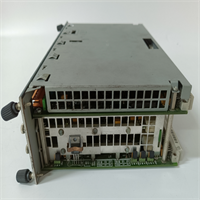
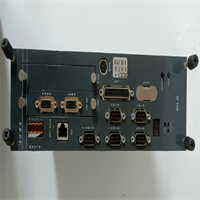
IP706 KEBA
Compatible Replacement Models
- ✅ Drop-in Replacement: IP706-X variants (e.g., IP706-2, IP706-3).
- Note: Suffixes often denote processor speed, touch type (Resistive vs. Capacitive), or OS version. Dimensions and cut-outs are identical. Direct swap, but may require driver updates.
- ⚠️ Software Compatible: IP705 or IP707.
- Warning: IP705 is slightly older/slower; IP707 might be newer/larger. Physical mounting might differ slightly (check cut-out dimensions). Software migration should be straightforward, but performance characteristics will change.
- ❌ Hardware Mod Required: KeTop T70 (Handheld/Teach Pendant).
- Advice: Completely different form factor and interface. Cannot be mounted in a panel cutout. Requires different mounting brackets and cabling.
Frequently Asked Questions (FAQ)
Can I upgrade the RAM or Storage on the IP706?
Yes, on most IP706 models, the storage (CF card or mSATA SSD) is user-accessible by removing the rear cover. RAM is sometimes soldered, but some variants have a SO-DIMM slot. Check the specific service manual for your sub-model before opening. Warning: Opening the case may void the IP65 rating if the gasket is damaged during reassembly.The touch screen is inaccurate or drifting. How do I fix it?
First, clean the screen thoroughly. Then, run the touch calibration utility in Windows (Control Panel > Tablet PC Settings or KEBA specific tool). If calibration fails repeatedly, the resistive touch membrane might be worn out or the controller board faulty. In resistive screens, physical wear over years of use is common.Does this panel support dual independent displays?
Yes, the IP706 typically has a DVI/VGA port in addition to the internal LVDS connection for the built-in screen. You can extend the desktop to a second monitor for diagnostics or recipe management, provided the graphics driver supports it (most Intel Atom/Celeron chips in this era do).What happens if the CMOS battery dies?
You will lose BIOS settings (date/time, boot order, port configurations) every time power is cycled. The unit will still boot, but you’ll get error messages and potential network issues if the time drifts too much (affecting security certificates). Replace the CR2032 battery on the motherboard (requires opening the case).Is the IP706 suitable for outdoor use?
The front is IP65/IP66, so it handles rain and dust. However, the operating temperature range (0°C to 50°C) limits its use in extreme outdoor climates without additional heating or cooling enclosures. Direct sunlight can also cause overheating and reduce display visibility. For harsh outdoor use, consider a model with a wider temperature range or an external sun shield/heater box.